通过python对纸质签到表进行统计
通过python对纸质签到表进行统计
单位取消了刷脸签到,改用纸质签到。不幸交由我负责,更不幸还要求对签到情况进行统计。签到人员六十几人,一天四张签到表,一个月下来就非常多,人工统计来低效和浪费人了。网上找了一圈没找到合适方式,所以愤而写了这个小工具,把我从枯燥工作中解放。
1.确定思路
先上签到表示例
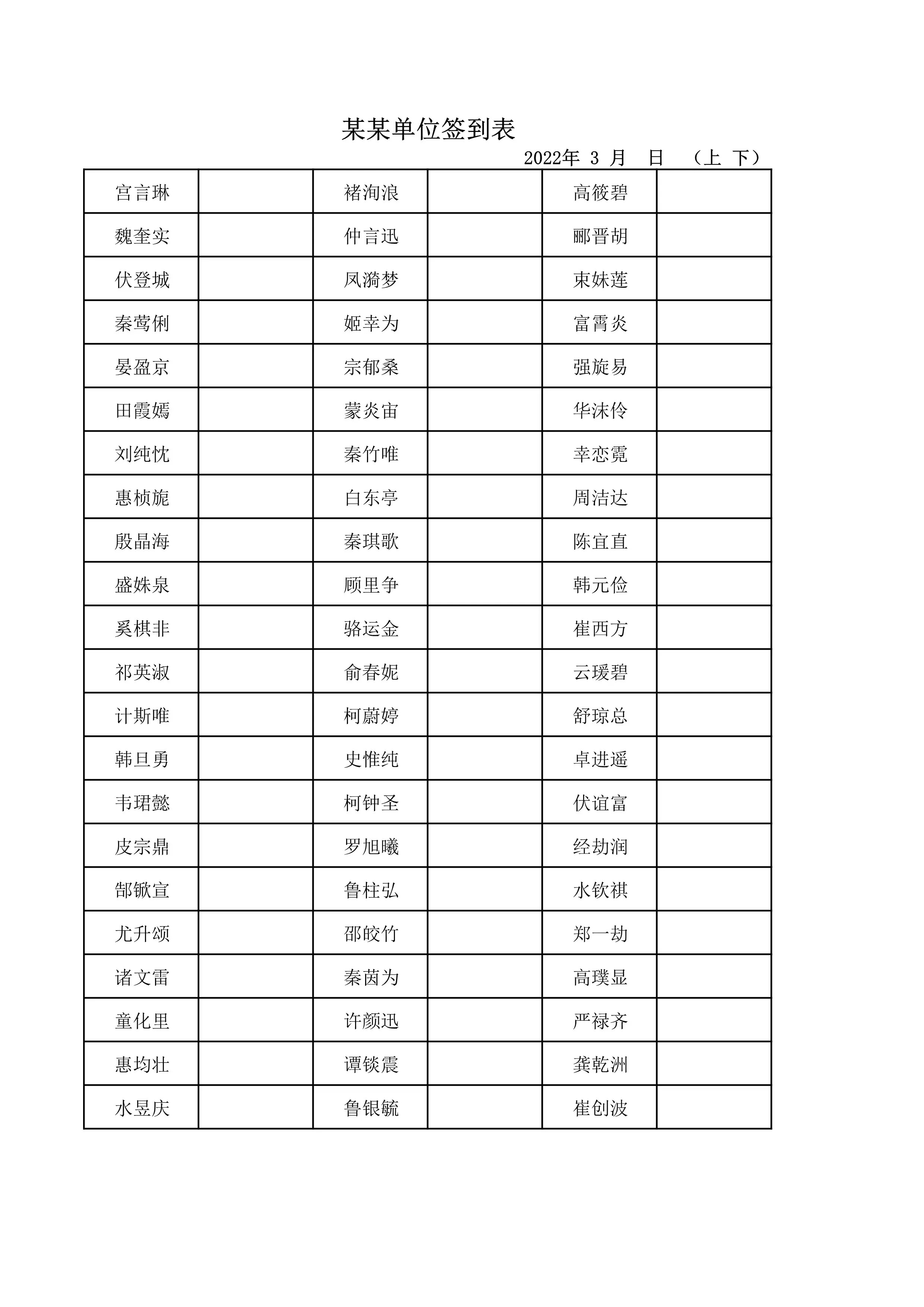 签到表虽多,但为统一格式大小,且人员长久不会变动。
- 首先将所有签过的签到表扫描为jpg格式图片。
- 先将每页的所有签字部分切割出来,放在此签到表的文件夹下,并有规律的命名。
- 判断每个切割的小图中黑色的占比,达到一定比例说明此处已签到。
- 通过一定顺序打开、切割和识别图片,加一或加零,来进行统计多张签到表。
2.程序编写
##2.1得到文件夹下所有签到图片的路径
def all_file_names(path):
    file_names = os.listdir(path)  # 得到文件夹下的所有文件名称
    file_paths = [path + '/' + str(i) for i in file_names]  # 得到文件夹下的所有文件的路径地址
    return file_paths
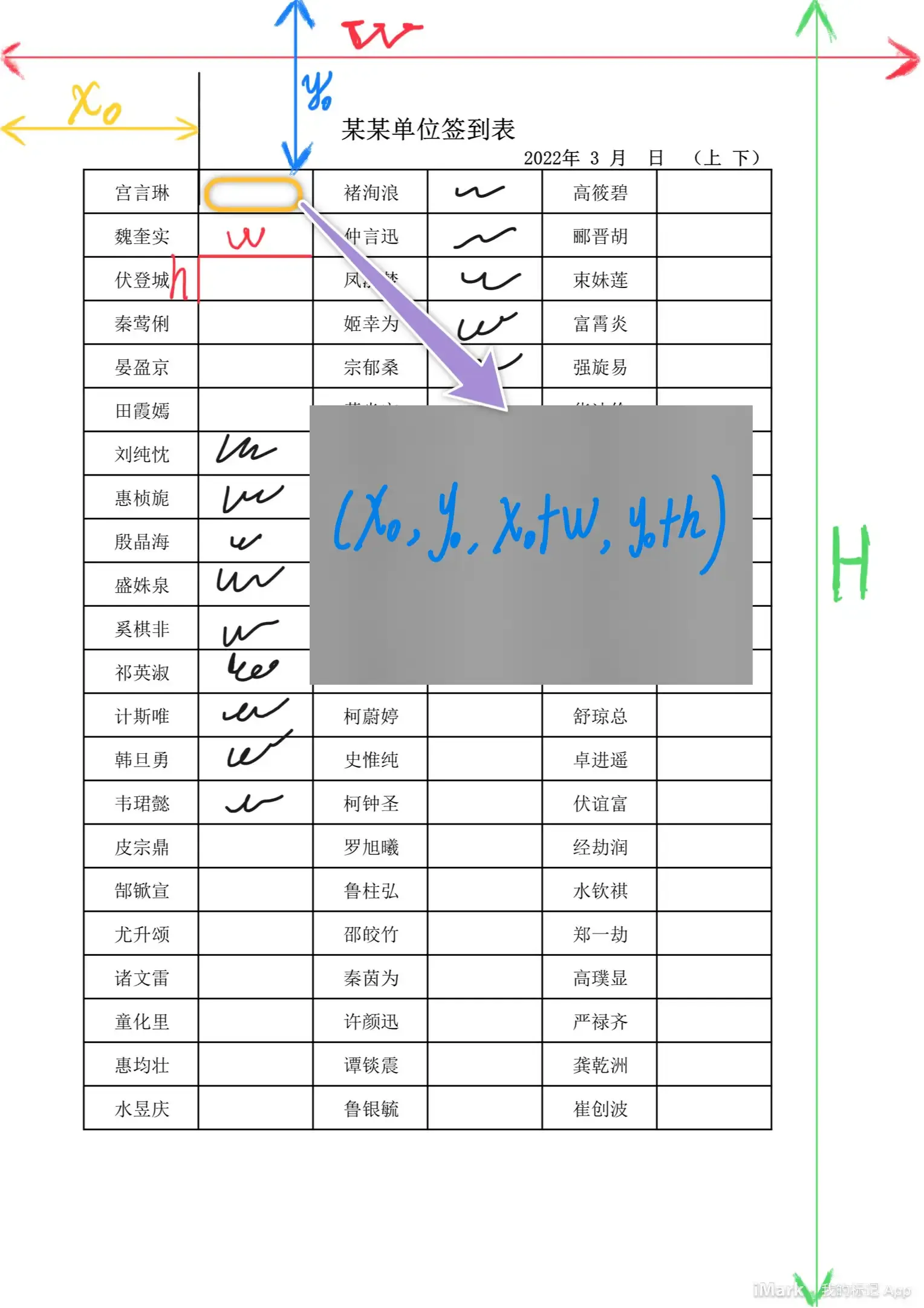
2.2确定位置,将签字处切割并保存,返回小图的路径
def cut_one_original_file(file_path):
    #打开一张图
    img = Image.open(file_path)
    img_size = img.size
    H = img_size[1]  # 图片高度
    W = img_size[0]  # 图片宽度

    # 不变的签名框的尺寸大小
    w = 0.078597 * W
    h = 0.019047 * H
    parameter_p = 0

    # 确定列数columns和行书rows
    columns = range(3)
    rows = range(22)

    for column in columns:
        x = ((375 + (414 * column))/1654) * W    # 选定区域的的左边距位置,同一列的情况下,x不变
        for row in rows:
            y = ((335 + (81 * row))/2338) * H   # 选定区域的上边距位置
            region = img.crop((x, y, x + w, y + h))   # 选定区域的x、y轴初位置,以及末位置

            parameter_p = parameter_p + 1
            parameter_p_n = parameter_p +10    # 以11为起始,对切割的小图进行排序,以列从上往下进行排序

            file_path_parameter = file_path[:-4]    # 创建以需要处理的签到表图片命名的文件夹,
            if not os.path.exists(file_path_parameter):  # 判断文件夹是否存在,如果不存在就创建
                os.mkdir(file_path_parameter)

            region.save(file_path_parameter + '/' + str(parameter_p_n) + ".jpg")  # 将切割的小图
    processed_path = file_path[:-4]
    return processed_path
2.3将小图二值化,存根目录下"text.jpg"(循环中替换)
def image_binarization(partial_picture_after_cutting_path):
    img = Image.open(partial_picture_after_cutting_path)
    # 模式L”为灰色图像,它的每个像素用8个bit表示,0表示黑,255表示白,其他数字表示不同的灰度。
    Img = img.convert('L')

    # 自定义灰度界限,大于这个值为黑色,小于这个值为白色
    threshold = 200
    table = []
    for i in range(256):
        if i < threshold:
            table.append(0)
        else:
            table.append(1)
    # 图片二值化
    photo = Img.point(table, '1')
    photo.save('test.jpg')
    return photo
2.4对text.jpg颜色分析,返回黑色占比
def color_analysis():
    black = 0
    white = 0
    image = cv2.imread('test.jpg')
    height = image.shape[0]  # 将tuple中的元素取出,赋值给height,width,channels
    width = image.shape[1]
    channels = image.shape[2]
    for row in range(height):  # 遍历每一行
        for col in range(width):  # 遍历每一列
            for channel in range(channels):  # 遍历每个通道(二值化后只有一个通道)
                val = image[row][col][channel]
                if (val) == 0:
                    black = black + 1
                else:
                    white = white + 1
    black_proportion = round(black/(black+white),2)   # 分数进行四舍五入,保留两位小数
    return black_proportion
2.5统计的列表分行存txt文件中
ef save_Statistical_results_file(lists):
    f = open("全部统计结果.txt", "w")
    for line in lists:
        f.write(str(line) + '\n')
    f.close()
2.6核心逻辑和主函数
def main():
    lists = [0]*66   # 签到表共有多少签字处
    path = input('请输入需统计的签到表存放位置:')
    file_paths = all_file_names(path)
    for file_path in file_paths:   # 所有签到表进行循环
        parameter_n = 0   # 过程参数,用来确认循环到第几次
        processed_path = cut_one_original_file(file_path)
        partial_picture_after_cutting_paths = all_file_names(processed_path)
        for partial_picture_after_cutting_path in partial_picture_after_cutting_paths:  # 一张签到表切割的小图进行循环
            print(partial_picture_after_cutting_path)  # 监看程序运行进度
            image_binarization(partial_picture_after_cutting_path)
            black_proportion = color_analysis()
            if black_proportion > 0.04:   # 判断黑色占比,大于4%,认为此处已签到
                lists[parameter_n] = lists[parameter_n] + 1  # 第n次循环,则列表的第n个元素加一
            parameter_n = parameter_n +1    # 过程参数,循环一次加一
    save_Statistical_results_file(lists)   # 保存列表
    print('All tasks have been completed.')  # 打印结束提示
2.7全部代码
'''
Author:@caspiankexin
Language:python
Date:2022.3.14
'''

# 导入相关的库
import os
from PIL import Image
import cv2

'''
得到文件夹下所有文件的路径地址
'''
def all_file_names(path):
    file_names = os.listdir(path)  # 得到文件夹下的所有文件名称
    file_paths = [path + '/' + str(i) for i in file_names]  # 得到文件夹下的所有文件的路径地址
    return file_paths

'''
根据设定的位置,将一张大图切割为n个小图片。
'''
def cut_one_original_file(file_path):
    #打开一张图
    img = Image.open(file_path)
    img_size = img.size
    H = img_size[1]  # 图片高度
    W = img_size[0]  # 图片宽度

    # 不变的签名框的尺寸大小
    w = 0.078597 * W
    h = 0.019047 * H
    parameter_p = 0

    # 确定列数columns和行书rows
    columns = range(3)
    rows = range(22)

    for column in columns:
        x = ((375 + (414 * column))/1654) * W    # 选定区域的的左边距位置,同一列的情况下,x不变
        for row in rows:
            y = ((335 + (81 * row))/2338) * H   # 选定区域的上边距位置
            region = img.crop((x, y, x + w, y + h))   # 选定区域的x、y轴初位置,以及末位置

            parameter_p = parameter_p + 1
            parameter_p_n = parameter_p +10    # 以11为起始,对切割的小图进行排序,以列从上往下进行排序

            file_path_parameter = file_path[:-4]    # 创建以需要处理的签到表图片命名的文件夹,
            if not os.path.exists(file_path_parameter):  # 判断文件夹是否存在,如果不存在就创建
                os.mkdir(file_path_parameter)

            region.save(file_path_parameter + '/' + str(parameter_p_n) + ".jpg")  # 将切割的小图
    processed_path = file_path[:-4]
    return processed_path

'''
将切割的小图片进行二值化处理,并且保存在根目录下"text.jpg"(每次会被替换,所以无所谓)
'''
def image_binarization(partial_picture_after_cutting_path):
    img = Image.open(partial_picture_after_cutting_path)
    # 模式L”为灰色图像,它的每个像素用8个bit表示,0表示黑,255表示白,其他数字表示不同的灰度。
    Img = img.convert('L')

    # 自定义灰度界限,大于这个值为黑色,小于这个值为白色
    threshold = 200
    table = []
    for i in range(256):
        if i < threshold:
            table.append(0)
        else:
            table.append(1)
    # 图片二值化
    photo = Img.point(table, '1')
    photo.save('test.jpg')
    return photo

'''
对二值化后的图片(存在根目录的text.jpg)进行颜色分析,黑色和白色的像素点分别有多少个。
'''
def color_analysis():
    black = 0
    white = 0
    image = cv2.imread('test.jpg')
    height = image.shape[0]  # 将tuple中的元素取出,赋值给height,width,channels
    width = image.shape[1]
    channels = image.shape[2]
    for row in range(height):  # 遍历每一行
        for col in range(width):  # 遍历每一列
            for channel in range(channels):  # 遍历每个通道(二值化后只有一个通道)
                val = image[row][col][channel]
                if (val) == 0:
                    black = black + 1
                else:
                    white = white + 1
    black_proportion = round(black/(black+white),2)
    return black_proportion

'''
将统计好的列表保存到txt文件中,分行显示
'''
def save_Statistical_results_file(lists):
    f = open("全部统计结果.txt", "w")
    for line in lists:
        f.write(str(line) + '\n')
    f.close()

'''
程序核心逻辑和主函数
'''
def main():
    lists = [0]*66   # 签到表共有多少签字处
    path = input('请输入需统计的签到表存放位置:')
    file_paths = all_file_names(path)
    for file_path in file_paths:   # 所有签到表进行循环
        parameter_n = 0   # 过程参数,用来确认循环到第几次
        processed_path = cut_one_original_file(file_path)
        partial_picture_after_cutting_paths = all_file_names(processed_path)
        for partial_picture_after_cutting_path in partial_picture_after_cutting_paths:  # 一张签到表切割的小图进行循环
            print(partial_picture_after_cutting_path)  # 监看程序运行进度
            image_binarization(partial_picture_after_cutting_path)
            black_proportion = color_analysis()
            if black_proportion > 0.04:   # 判断黑色占比,大于4%,认为此处已签到
                lists[parameter_n] = lists[parameter_n] + 1  # 第n次循环,则列表的第n个元素加一
            parameter_n = parameter_n +1    # 过程参数,循环一次加一
    save_Statistical_results_file(lists)   # 保存列表
    print('All tasks have been completed.')  # 打印结束提示

if __name__ == '__main__':
    main()
3.后记
3.1心得
本说明,我认为已经写的很清晰了,注释也不少。如果有人有类似需求,完全可以看懂和修改来使用。只需修改columns rows w h x y lists
这次的核心程序,两三个小时就解决了,解决小bug费的时间比较长,大部分都是不够细心导致的,之后一定要在仔细。
开始写代码后,凡事都努力让其有所规律,这次的签到表也是经过几次调整,让格式,排序,大小都有固定的标准,才有可能通过代码来解决各种问题。
3.2无奈
函数的命名,简单粗暴的使用了翻译的语句,就显得很长。还不了解命名的规范和标准。这是个小缺点。
网上找不到类似的工具也是能理解的,如果想统计,那才用钉钉或其他就完全可以自动统计,远比纸质版要方便的多得多。采用纸质版签到就很少有人打算认真统计签到情况(懂得都懂)。作为基层干活人员,完全没有决策权,只能在层层决策下想办法做好一些畸形的工作。